
Este artículo solo está disponible en inglés.
Para CRM admins · Actualizado el 6 nov 2026
Connect Salesforce to Scowtt
Scowtt learns which leads become customers by reading your CRM history. Salesforce connects through a native connector in the Scowtt app, which is the fastest way to share CRM data. You authorize read-only access with a standard OAuth login, so no credentials are shared directly with Scowtt, and updates flow automatically.
How it works: You connect Salesforce in the Scowtt app and map your funnel stages. Scowtt reads your CRM data and checks it with you.
Before you start
- A login for the Scowtt app from your Scowtt team.
- A Salesforce edition with API access. Enterprise, Unlimited, Performance and Developer editions include it. Professional Edition needs Salesforce's API add-on.
- A connecting user with the API Enabled permission. Scowtt can read only what this user can see, so use an admin, or a long-lived integration account, that can view all leads, contacts, opportunities, activities and the fields you use. Avoid a personal account that may be deactivated later.
- A list of the fields you use for lifecycle stages, such as Lead, MQL, SQL/SQO and Closed Won.
Steps
-
You: Open Integrations in Scowtt
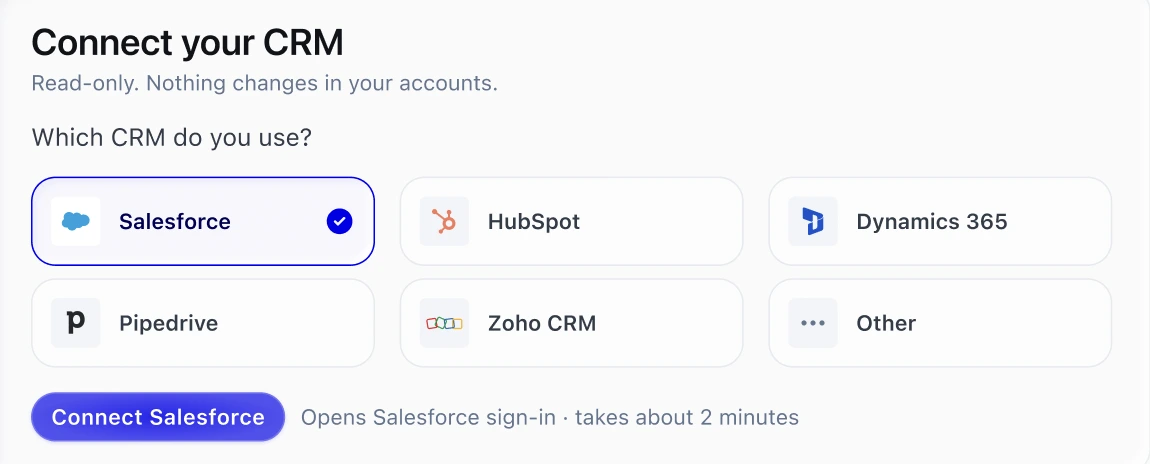
Log in to the Scowtt app and go to Integrations. Under Connect your CRM, select Salesforce, then click Connect Salesforce. Choose your live Salesforce org, not a sandbox: Scowtt models from production data. It opens the Salesforce sign-in and takes about 2 minutes.
-
You: Authorize access in Salesforce
You'll be taken to Salesforce to sign in and approve access. This is the same kind of OAuth flow you'd use to connect any app to your CRM. If nothing opens, allow pop-ups for app.scowtt.com and try again.
-
You: Confirm the connection
Back in the Scowtt app, Salesforce should show as Connected.
-
You: Map your lifecycle stages
In the Account setup checklist, complete Map customer journey: confirm which fields and values mark each funnel stage, and which object holds each one if you use custom objects. This lets Scowtt measure lead quality all the way to revenue.
Scowtt stage Your Salesforce field and value Lead [FIELD = VALUE] MQL [FIELD = VALUE] SQL/SQO [FIELD = VALUE] Closed Won [FIELD = VALUE] -
You: Check that click IDs are captured on leads
Ad click IDs, such as GCLID for Google and FBCLID for Meta, let Scowtt send lead signals back to the right ad click. Confirm your forms save them to a field on the lead record. See Capturing click IDs on your forms.
Tip: Not capturing click IDs yet? Your Scowtt team can help.
-
You: Validate and approve your funnel
Complete Validate data, which checks your funnel against your CRM data. Once it passes, approve the funnel to start ingestion.
-
Scowtt: Check your data with you
Once you approve the funnel, Scowtt starts reading your CRM data and validates the historical backfill with you. Your Scowtt team confirms when recurring updates are on.
Troubleshooting
I don't see the approval screen
The approval screen usually doesn't appear for one of these reasons:
- Your browser blocked the pop-up: Allow pop-ups for app.scowtt.com, then click Connect again.
- You're signed in to a different Salesforce org: For example, a sandbox or another company account. Sign out of Salesforce, then click Connect again and sign in to the right org.
- Your org blocks apps that aren't installed: Since September 2025, Salesforce blocks most users from authorizing connected apps that aren't installed in your org. A Salesforce admin should install Scowtt's connected app under Setup > Connected Apps OAuth Usage, and allow the connecting user through a profile or permission set. Then click Connect again.
- Your account can't approve connected apps: Ask your Salesforce admin to connect Scowtt, or to grant you the access.
If none of these solve it, contact your Scowtt team.
Which Salesforce objects and fields does Scowtt read?
Scowtt has read-only access and uses only the data needed to model your lead lifecycle. That typically includes:
- Leads and Contacts: ID, created date, lead source, campaign, and status or stage.
- Activities: Calls, emails, tasks and meetings, with their dates and outcomes.
- Opportunities: ID, created date, stage, close date, won or lost, and amount.
Your Scowtt team will confirm the exact fields with you during data mapping. See Required fields and lifecycle stages for the full list.
We use custom objects instead of Opportunities
That's fine. Many businesses track deals, appointments or applications in custom objects. During data mapping, tell your Scowtt team which object holds each stage of your funnel, and which fields mark key events like a booked appointment or closed deal. Scowtt maps them to your lifecycle stages.
If custom objects or some stages can't be read through the connector, share those tables another way alongside it, such as BigQuery, Google Cloud Storage, Amazon S3 or SFTP.
How do I disconnect Scowtt?
Click Disconnect on the Integrations page in the Scowtt app, or revoke the app in Salesforce.
Who does what
| Step | Who | What changes hands |
|---|---|---|
| Open Integrations in Scowtt | You | — |
| Authorize access in Salesforce | You | Read-only access, approved in Salesforce |
| Confirm the connection | You | — |
| Map your lifecycle stages | You | Your stage fields and values, in the app |
| Check that click IDs are captured on leads | You | — |
| Validate and approve your funnel | You | Funnel approval, in the app |
| Check your data with you | Scowtt | Confirmation that data is flowing |