
Este artículo solo está disponible en inglés.
Para CRM admins · Actualizado el 6 nov 2026
Connect HubSpot to Scowtt
HubSpot connects through a native connector in the Scowtt app. You authorize read-only access with a standard OAuth login, so no credentials are shared directly with Scowtt, and updates flow automatically.
How it works: You connect HubSpot in the Scowtt app and map your funnel stages. Scowtt reads your CRM data and checks it with you.
Before you start
- Super Admin rights in HubSpot, or HubSpot's Marketplace Access permission, for the person connecting.
- A login for the Scowtt app from your Scowtt team.
- The lifecycle stages or deal stages you use to track leads to revenue, and whether you use lifecycle stages, deal stages or both.
Steps
-
You: Open Integrations in Scowtt
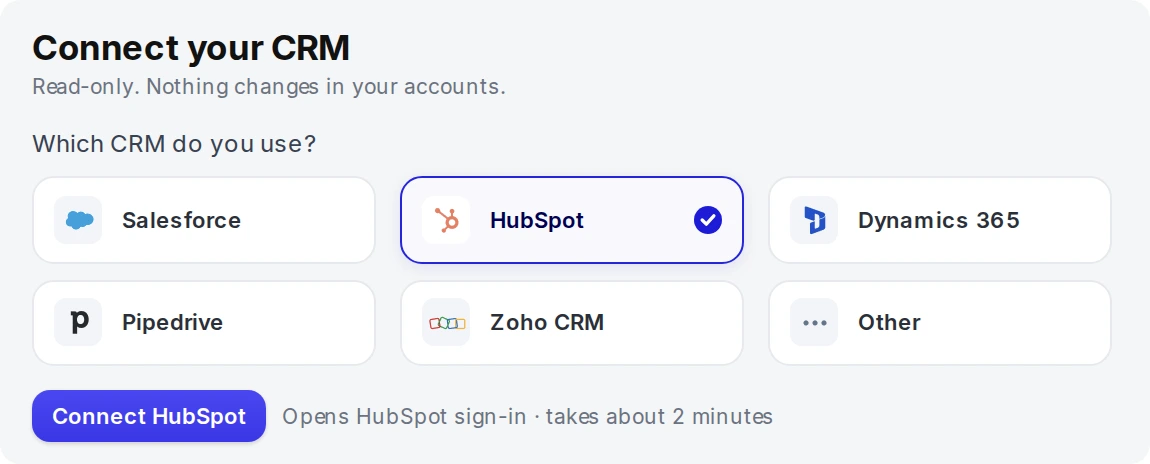
Log in to the Scowtt app and go to Integrations. Under Connect your CRM, select HubSpot, then click Connect HubSpot. It opens the HubSpot sign-in and takes about 2 minutes.
-
You: Authorize access in HubSpot
Sign in to HubSpot and approve access through the standard OAuth screen. If nothing opens, allow pop-ups for app.scowtt.com and try again.
-
You: Confirm the connection
Back in the Scowtt app, HubSpot should show as Connected.
-
You: Map your lifecycle stages
In the Account setup checklist, complete Map customer journey. Tell your Scowtt team which HubSpot lifecycle or deal stages match each funnel stage, such as MQL, SQL/SQO and Closed Won, and whether you track progress with lifecycle stages, deal stages or both.
-
You: Validate and approve your funnel
Complete Validate data, then approve the funnel to start ingestion.
-
Scowtt: Check your data with you
Once you approve the funnel, Scowtt starts reading your CRM data and validates the historical backfill with you. Your Scowtt team confirms when recurring updates are on.
Troubleshooting
Some of our stages live outside HubSpot
Share those tables another way alongside the connector, such as BigQuery, Google Cloud Storage, Amazon S3 or SFTP.
How do I disconnect Scowtt?
Click Disconnect on the Integrations page in the Scowtt app, or remove the app in HubSpot.
Who does what
| Step | Who | What changes hands |
|---|---|---|
| Open Integrations in Scowtt | You | — |
| Authorize access in HubSpot | You | Read-only access, approved in HubSpot |
| Confirm the connection | You | — |
| Map your lifecycle stages | You | Your lifecycle or deal stages, in the app |
| Validate and approve your funnel | You | Funnel approval, in the app |
| Check your data with you | Scowtt | Confirmation that data is flowing |